- Home
- Blog
- Publishing
- A week in one sitting
Plan and schedule a week of posts in one sitting
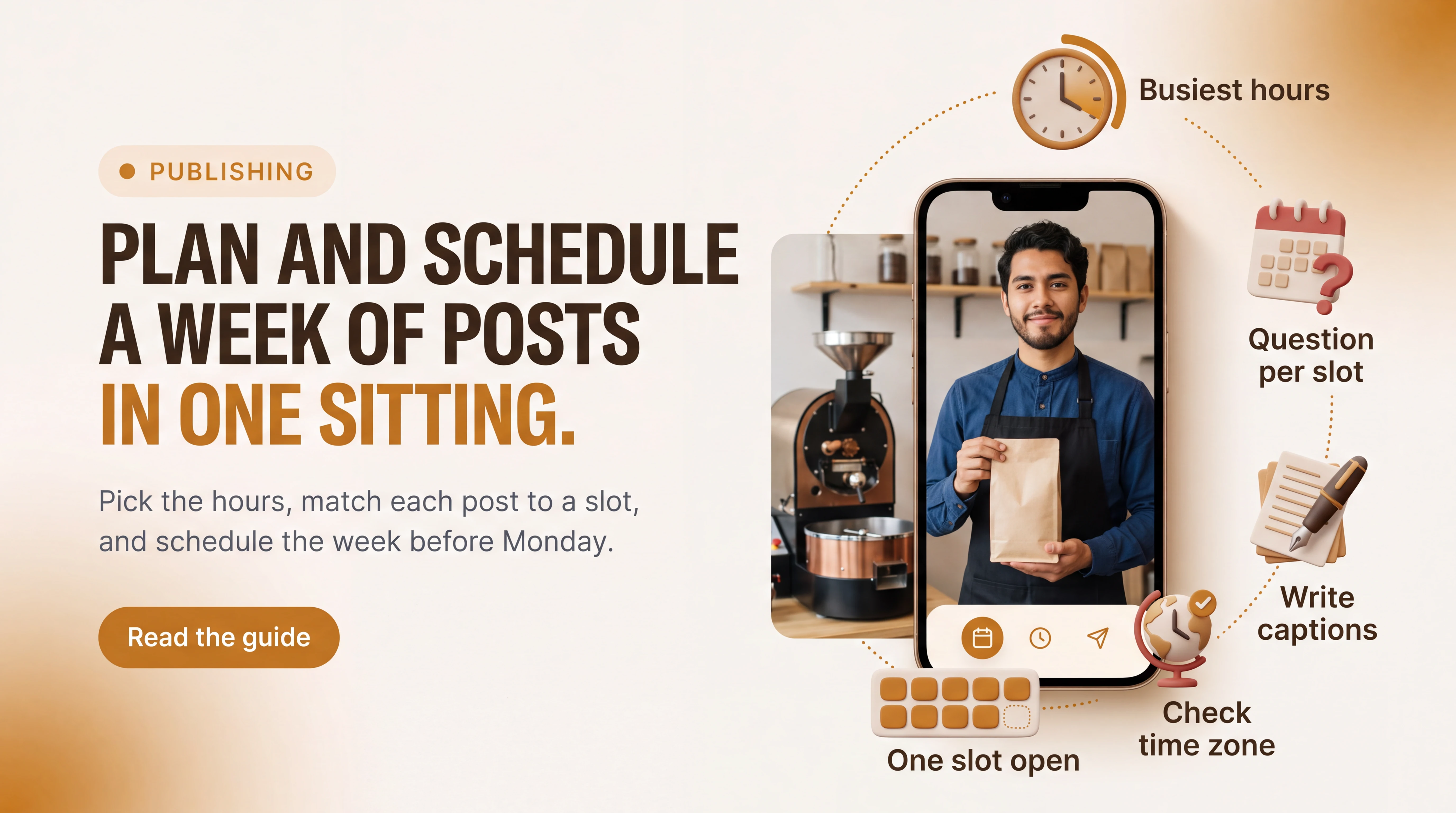
Pick the hours, match each post to a slot, prepare the photos and captions, and schedule the whole week before Monday starts.
On this page
Posting every day is hard when every post starts from nothing at the moment it is due. The photo is not taken, the caption is not written, and the post goes up at whatever hour the phone is free. A week planned in one sitting moves that work to one block of time, when you can think about the week as a whole.
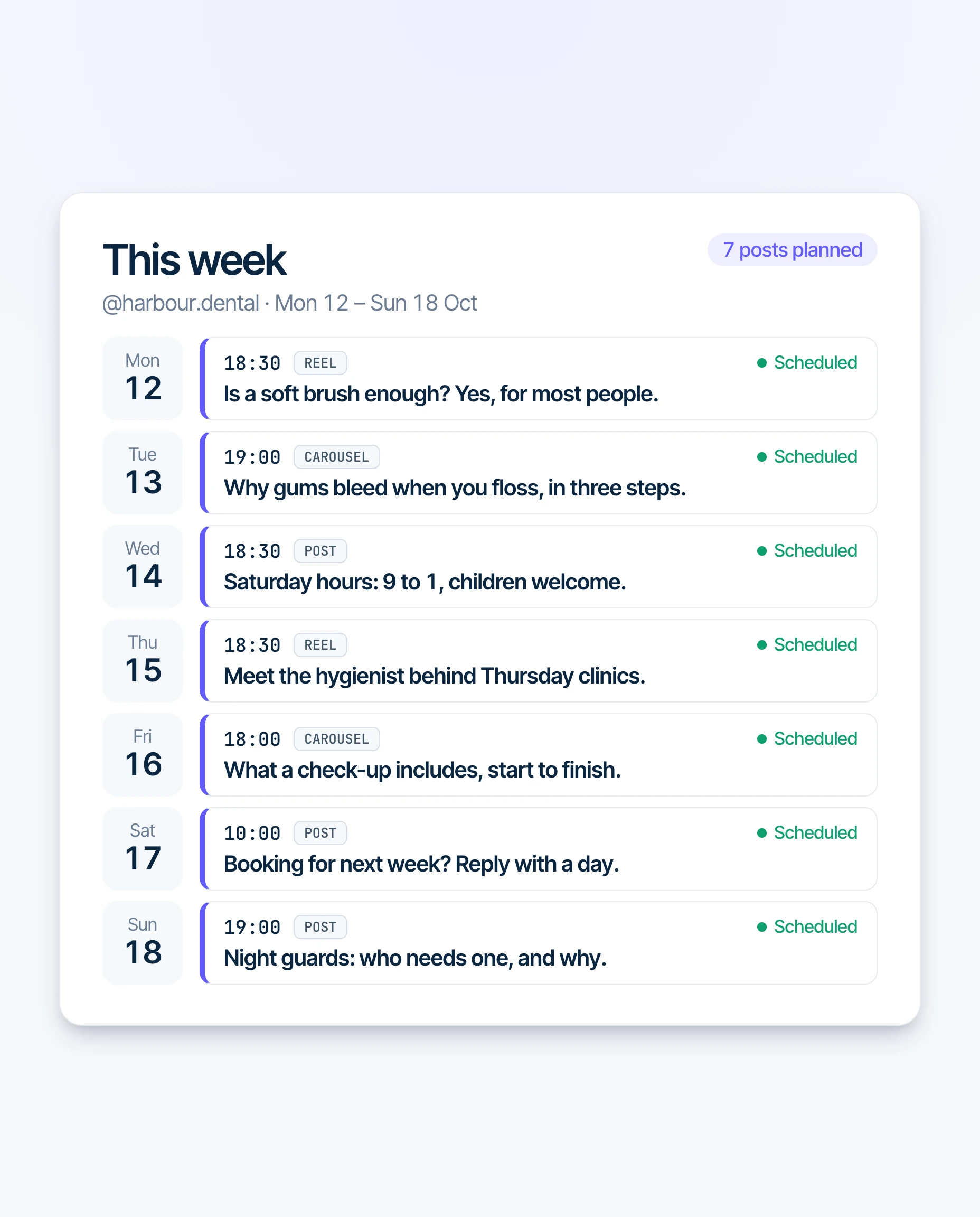
This guide takes you through that sitting: choosing the hours, matching each post to a slot, preparing the photos and the captions, and scheduling the posts so they go out on their own. Plan for about an hour and a half the first time. It gets shorter every week, because the hours and the format of most slots stay the same.
Choose the slots first
A slot is a day and an hour when a post goes out. Choose the slots before you choose the posts, because the slots decide how many posts the week needs and when each one is seen.
Open your insights and look at the hours your followers are most active. Mark the busiest band on each day. If your followers are online most in the evening, the slots go in the evening, even if you would rather post at lunch. The Best Time to Post tool lays your followers' hours out as a weekly grid in your own time zone, which makes the busiest bands easy to spot.
Keep the number of slots you can sustain. A week of four posts that all go out is better than a plan for seven that falls apart on Wednesday. Once the slots are set, they rarely change from week to week; the sitting after that is mostly about what goes into them.
The sitting, in order
- Match a question to each slot
Take the questions with the highest tallies and give each slot one question. Put before-you-buy questions on the days people plan, and how-to questions on the days people have time to read.
- Pick the format for each post
A question with steps becomes a carousel or a Reel. A question with a short answer becomes a single post. A question about the people behind the work becomes a photo or a Reel of them.
- Prepare the photos and clips
Choose the media for every post from the folder, crop each one to its format, and note what is missing. Take the missing photos the same day, while the plan is fresh.
- Write every caption
Write the first line of each caption from the question, then the body, then one question back to your followers. Read them in a row: the week should not repeat the same opening.
- Schedule the posts
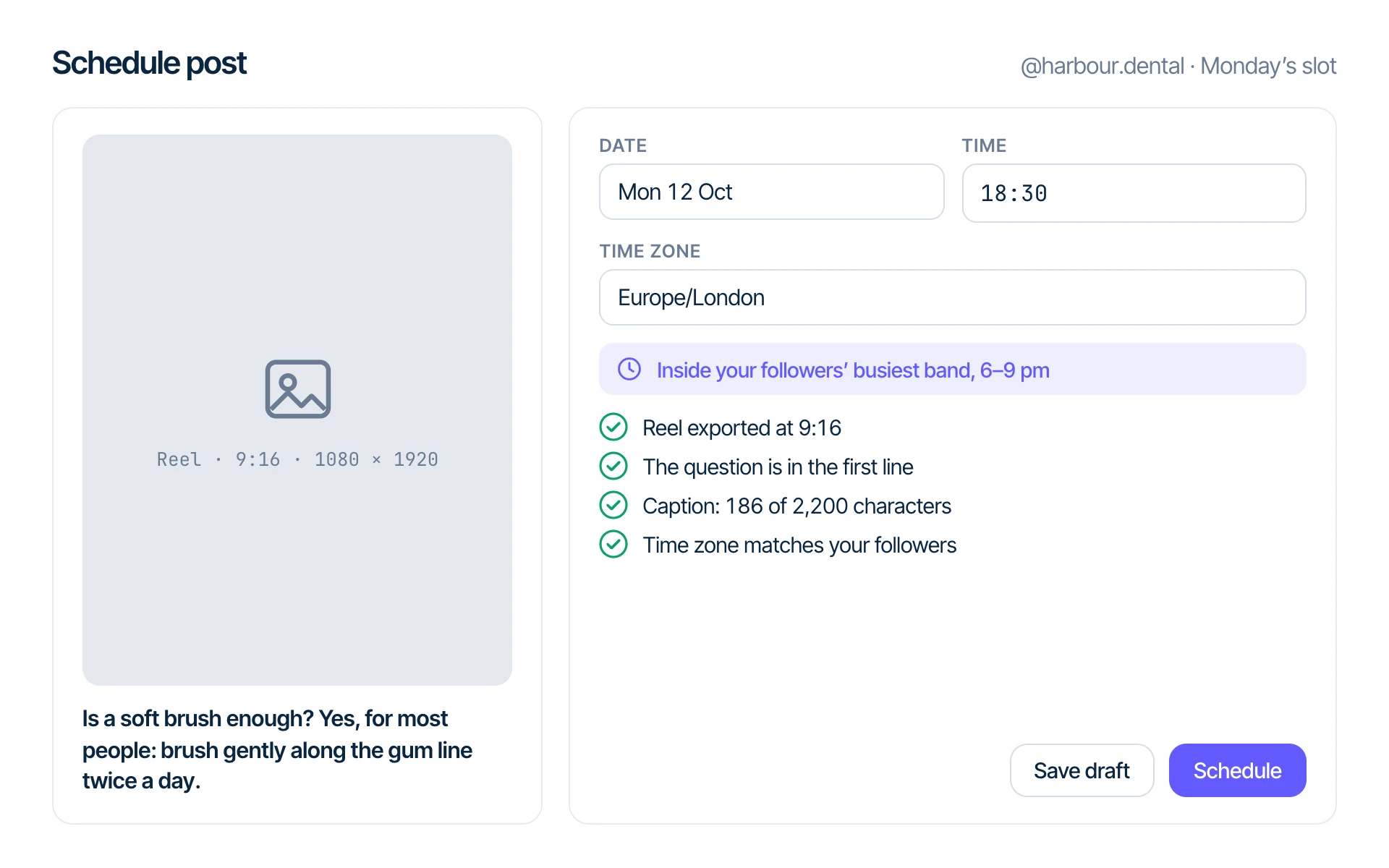
Set each post to go out at its slot. Check the time zone once, on the first post, before you schedule the rest.
- Leave one slot open
Keep one slot without a scheduled post, for the question or the event that comes up during the week.
If you are short of questions, the guide on turning your comments into a week of posts shows how to collect and sort them. Last month's report tells you which format to lean on; the guide on reading your monthly report shows where to look.
Get the sizes right once
Most scheduling problems come from media in the wrong shape: a photo that gets cropped, a Reel with black bars, a carousel whose slides do not match. Set up each format once and reuse the settings every week.
| Format | What Instagram accepts | What to prepare |
|---|---|---|
| Photo in the feed | Up to 1080 pixels wide; between 1.91:1 and 4:5 the photo keeps its shape1 | Crop portrait photos to 4:5 so they take the most room in the feed1 |
| Reel | Between 1.91:1 and 9:16, at least 720 pixels, at least 30 frames a second2 | Film upright and export at 9:16, so the Reel fills the phone screen2 |
| Carousel | Through the API a carousel holds up to 10 items3 | Crop every slide to the same shape, so no slide is cut when the carousel is shown |
| Caption | Up to 2,200 characters3 | Put the question or its answer in the first line, before the caption folds |
Keep one folder per format on your phone or computer, with every file already cropped. On the day of the sitting, you pick from the folders instead of cropping under time pressure. The free Story Size, Reel Size and Carousel Size tools crop a picture or a Reel cover to each shape in your browser, and the Character Counter counts a caption against the limit.
Write the captions in a row
Writing all the week's captions at once shows you what a follower sees when they scroll your grid: if four captions in a row open with "Did you know", the week reads as one post repeated. Vary the openings. Start one with the follower's question, one with the answer, one with a number from your own work, one with the name of the person in the photo.
Here is one post from an example clinic's week. The question came from the comments; the caption opens with it and answers it in the first two lines.
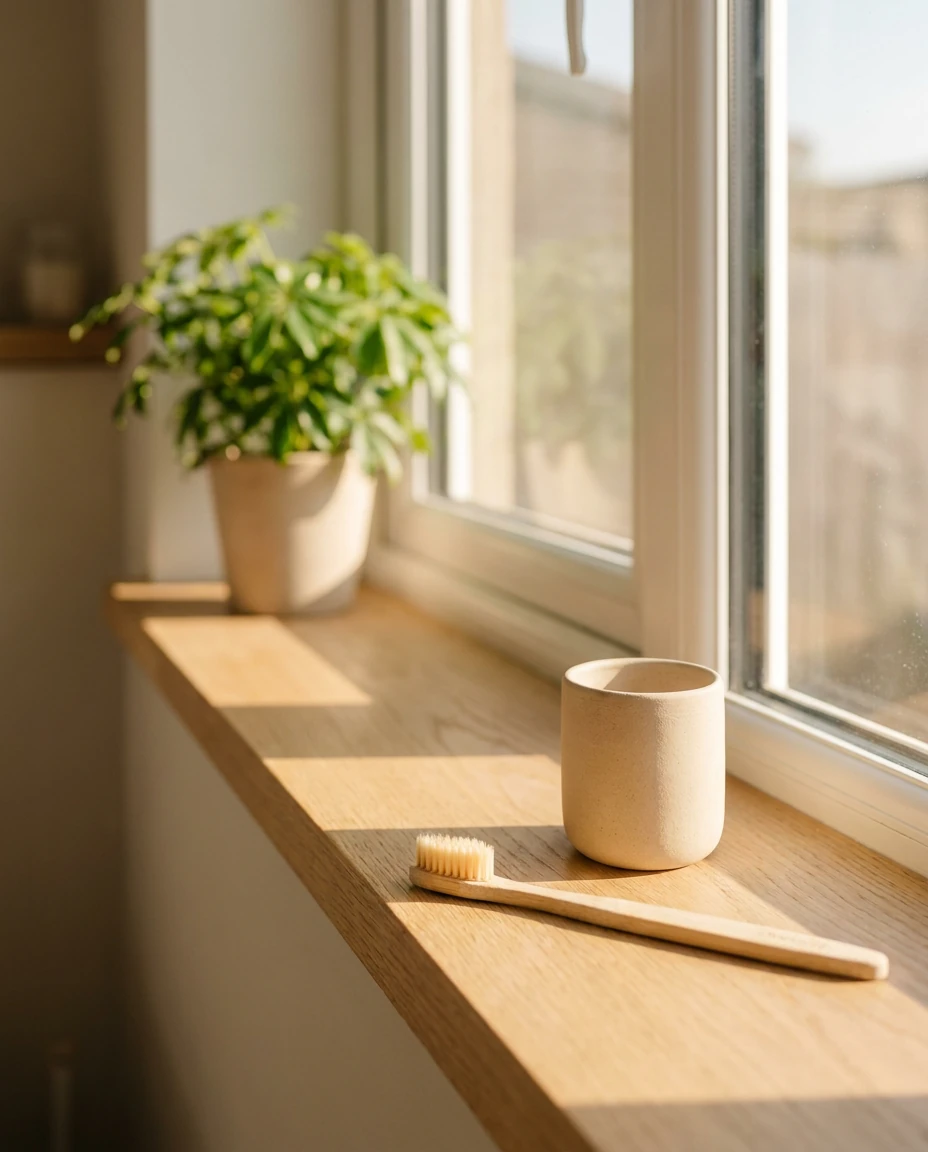
harbour.dentalIs a soft brush enough? Yes, for most people: brush gently along the gum line twice a day. Swipe for how.
When a caption will not come, the Caption Generator writes three versions from one sentence, each with a first line, a body and a question to close. Edit the one closest to your voice and put your follower's words back in. For a styled line in your bio that points to the week's series, the Font Generator shows the same text in several styles.
Schedule, then step back
Professional accounts can schedule posts, carousels and Reels in the Instagram app: the scheduling switch sits in the advanced settings on the last screen before you share. On a computer, Meta Business Suite schedules posts for Instagram and Facebook from one calendar. Either way, the post goes out at its slot while you are doing something else.
Scheduling does not mean leaving the account alone. The hour after a post goes up is when the first comments arrive, and answering them then keeps the conversation going. Put a short reminder in your calendar for each slot, so someone is around to reply.
Do
- Schedule the whole week before Monday starts.
- Leave one slot open for what happens during the week.
- Read every caption once more on the day it goes out.
- Reply to the first comments in the hour after each post.
Don't
- Schedule a post that depends on news you have not confirmed.
- Repeat the same first line across the week.
- Leave a scheduled post running after the event it mentions was cancelled.
- Change the slots every week; your followers' hours change slowly.
Check the week on Sunday
At the end of the week, look at each post's likes, comments, shares and saves, and work out the engagement rate by followers for each one. Compare each post with your own average from the weeks before, not with other accounts.4 Note which slot and which format did best; that is where next week's most important post goes. A free Instagram profile analysis of your public account lists the best three posts and the format that earns the most.
If the week went well, keep the slots and the formats and change only the questions. If one slot keeps doing worse than the others, move it to another hour in your followers' busiest band for a few weeks before you judge it again. If the account has not grown for a month or more, the guide on what to post when your account stops growing has a four-week plan built on the same reading.
Where ProfileScan fits
ProfileScan plans and publishes from one calendar. It suggests slots from the hours your own followers are online, fills them with ideas taken from your comments and DMs, and checks each caption before it goes out. Nothing is published until you approve it.
When the week does not go to plan
An event is cancelled, a delivery is late, a photo turns out blurry. Open the scheduled posts and move or delete the one that no longer fits; do not let it go out and correct it in the comments.
The open slot is there for this. Use it for the post that replaces the one you moved, or for a question that came in during the week and needs an answer before next week's sitting.
If the whole week falls apart, keep the slots and post fewer times rather than at random hours. Next week's sitting starts from the same slots, so nothing has to be planned twice.
- Instagram Help Center: Image resolution of photos you share on Instagram, photos up to 1080 pixels wide; aspect ratios between 1.91:1 and 4:5 are kept
- Instagram Help Center: Reel size and aspect ratios on Instagram, reels between 1.91:1 and 9:16, at least 720 pixels, at least 30 frames a second
- Meta for Developers: Instagram Graph API, IG User Media, captions up to 2,200 characters; a carousel published through the API holds up to 10 items
- ProfileScan Engagement Rate Calculator, the engagement rate bands